
PowerTemp Set-Up Guide
This document will provide you simple instructions on how to set up your PowerTemp system. The PathSpot team will be sending additional details via email to aid you in a hassle free installation!
Installation Materials
.
LoRaWAN Sensor (+ optional probe) LoRaWAN Gateway
2 zip-ties & 3M adhesive (magnets available upon request)..
.
Questions? Need help? Please contact PathSpot Support at: support@pathspottech.com
Call or Text (718) 550-0040
LoRaWAN Gateway:
Don’t Press the small RESET button -This will clear the PathSpot configurations of the Gateway and will no longer be able to connect
PathSpot Pre-Configured Gateways (Non-Standard):
If PathSpot preset your device to your wifi network follow the following steps:
- Plug the Gateway to power – Make sure this is as close to the wifi router as possible as this will increase our online time.
- Wait till the light turns solid green.
- Once this is done, your Gateway has been set up!
If the light doesn’t turn solid green and continues to flash, please contact PathSpot Support or follow the step-by-step instructions in the section below.
Partner Configured Gateways (Standard):
MiniHub Pro Gateway will display the below for Step 3:
Step-by-Step Instructions:
- Plug the Gateway to power – Make sure this is as close to the wifi router as possible as this will improve wifi stability.
- Long press the setup button for 15 sec.
- Using your phone or a computer, connect to the wifi network MiniHUB-XXXXXX and enter the Wifi password printed on the gateway.
- If you do not see the gateway network, repeat previous steps until the network is available.
- Once you have connected, the setup page will open automatically. If it doesn’t open, type http://192.168.4.1/ on your browser or scan the code below.
- Select the WiFi network you want to connect to by clicking on the network name or the + button next to the name.
- If you do not see the network, please ensure a 2.4GHz (not 5GHz) network option is available to connect.
- If the Wi-Fi network you're trying to connect to redirects users to a login page (captive portal) or requires a username and password, you won't be able to connect.
- Enter the WiFi Network password.
- This page will not indicate if the password is correct or not, so make sure you are entering the correct password (Case Sensitive).
- Once the wifi details are complete, click save and reboot.
- The Hub Status Light will rapidly flash orange (or between orange/green) while it’s downloading configurations. This process might take 30 sec to a minute.
- If it remains rapidly flashing in orange (or between orange/green) for 10 min or more contact support@pathspottech.com.
- If the pairing fails, after 10 min the light remains flashing, please refer to the table below.
- If the pairing is successful, the light will be solid green.
Confirming Gateway Connection:
Do: Provide the gateway mac address to your IT team prior to connection.
Don’t: Press the small RESET button -This will clear the PathSpot configurations of the Gateway and will no longer be able to connect
| Colors | Blink Pattern | Description | Troubleshooting steps to follow. |
|
Orange Green |
Slow Blinking (1 Second) |
Waiting for proper Wifi configuration | Follow all gateway connection steps again. |
|
Orange Orange/ |
Rapid Blinking (less than 1 sec) | Wifi details are being verified |
Check wifi connection and then unplug and re-plug the gateway. If this fails, follow all gateway connection steps again. |
| Green | Rapid Blinking (less than 1 sec) | Wifi details are correct, attempting cloud connection. | Verify network security. Contact your network team. |
| Green | Solid | Connection Successful! |
If all of the above steps fail and the gateway light doesn’t turn solid green, please contact support@pathspottech.com. Make sure you have the details of the troubleshooting steps followed.
LoRaWAN Temperature Sensor:
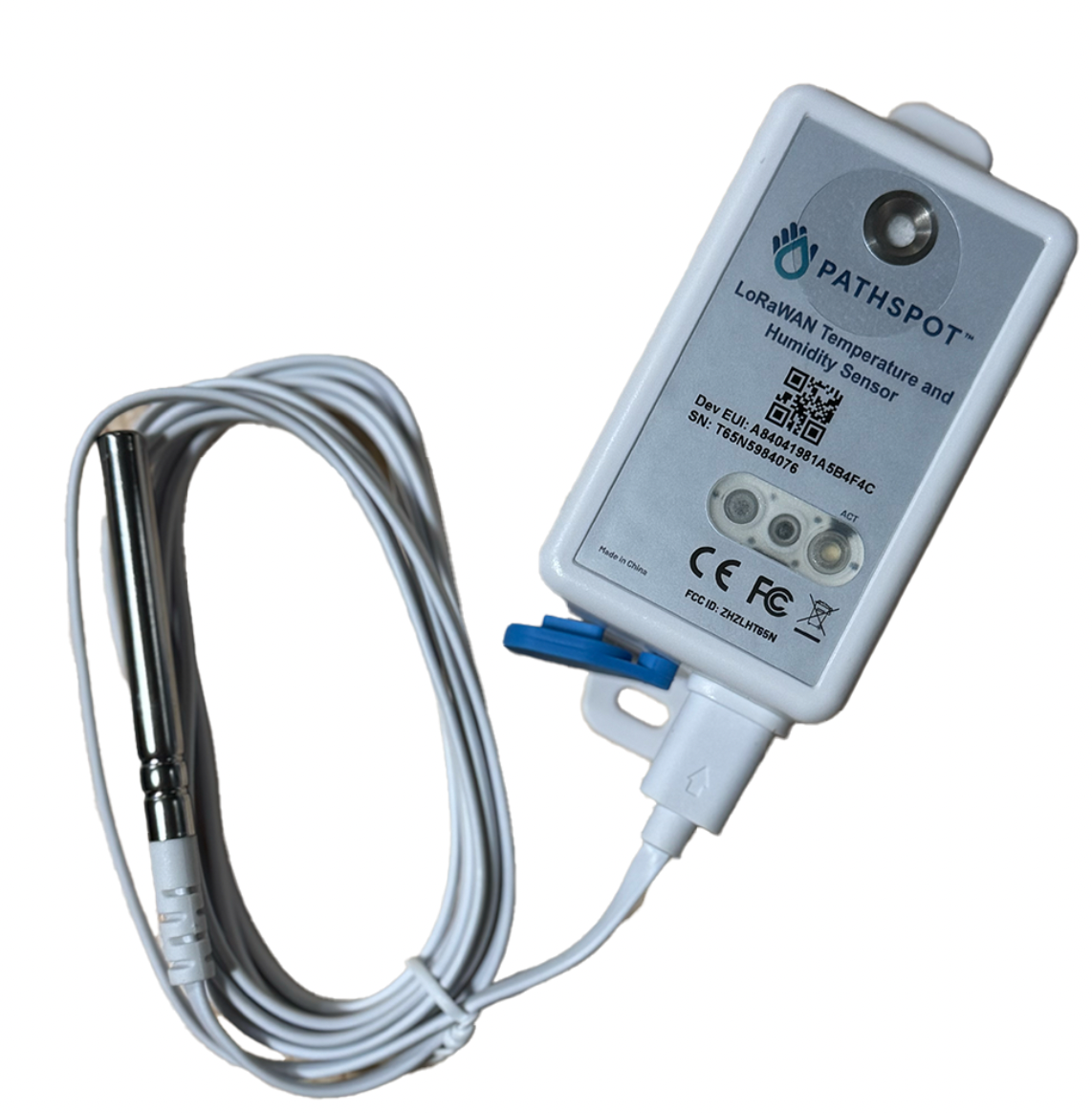
Note: Your sensor includes a USB-C probe designed for specialty use only. To activate this probe, please contact PathSpot Support at support@pathspottech.com . If you do not need the probe, simply discard it and ensure the blue connection cover is securely closed.
Pairing Sensors to Gateway
Ensure the gateway light is solid green before attempting to connect the sensors. This indicates an active Wi-Fi connection, which is required in order to pair the sensors to the gateway.
On the LoRaWAN sensor(s), press and hold the button on the front of the sensor (circled below) until the light flashes green and then flashes red once.
- Contact support@pathspottech.com if no lights appear.
Mounting the sensors on your units:
- Best Placement: Install the sensor inside the unit near doors, as this area experiences the most temperature variation.
- Preferred Installation Method: Use the provided zip ties for the simplest installation and easy replacement.
- Alternative Installation: If zip ties are not an option, use the provided adhesive (Magnets available upon request). Before applying, thoroughly clean the surface with a degreaser or your preferred cleaning product, then dry completely. Press and hold the sensor firmly in place for 30 seconds to ensure a secure bond.
(Optional) Using the USB-C Probe:
- If you plan to use the probe, please notify the PathSpot team. Otherwise, discard it.
- To use the probe, connect it to the sensor via the USB-C port at the bottom.
- Secure the probe cable with a zip tie or bread tie to keep it tidy and prevent cross-contamination.
Scan this QR Code for additional tips!
Confirm Sensor Pairing:
Login to the PathSpot Dashboard (pathspot.app) and verify sensor connection on the Sensor Overview page. Sensors send a temperature reading every 20 min.
-
Grey Tile: Sensor is pending connection or it's been 3 days or more since the last reading.
- If this is the case, long press the sensor button until the light flashes green and then flashes red once.
- If the sensor light doesn't turn on, contact support@pathspottech.com as a battery replacement might be needed.
-
Green Tile: Sensor is online and within set temp limits.
- If limits have not yet been set please reference our alert configuration article.
- Red Tile: Sensor is online and currently out of range.
If a PathSpot HandScanner has also been installed, on the HandScanner screen, tap on “Sensor Overview”. Your connected sensors will display a temperature reading (this can take up to 5-20 minutes after sensor pairing).
Once your gateway is connected, you're ready to install and activate your sensors!
This guide has instructions about how to activate your sensors.
This guide has best practices on placement/installation.